We've moved from Blogger to WordPress!

You should be automatically redirected in 5 seconds. If not, visit
http://blog.michaelfmcnamara.com
and update your bookmarks.

Tuesday, May 13, 2008

Succession Signaling Server - Tips Part 1

communication_server_1000_200x107 I thought I would share some of the more useful CLI commands that be found in the Nortel Succession 4.5 Signaling Server. You can access the CLI interface by TELNETing into the Signaling Server. You can also issue may of these commands from Element Manager, the web based GUI.

isetShow - display all IP phones connected (registered) to this signaling server.

oam> isetShow

Set Information
---------------
IP Address NAT Model Name Type RegType State Up Time Set-TN Regd-TN HWID FWVsn UNIStimVsn SrcPort DstPort
------------------ ---- -------------------------------- ---------- ------- ------------ -------------- ------------ ------------ -------------------- ------- ---------- ------- -------
10.1.1.146 IP Phone 1150E IPACD Regular online 7 10:00:30 152-00-00-09 152-00-00-09 18-001bbaf1cf58-66 C4L 2.9 5100 5000
10.1.1.123 IP Phone 2004 Phase 2 i2004 Ph2 Regular online 7 10:00:30 152-00-00-26 152-00-00-26 18-000ae4754301-66 DBG 2.9 5100 5000
10.1.1.124 IP Phone 2004 Phase 2 i2004 Ph2 Regular online 7 10:00:20 152-00-00-18 152-00-00-18 18-000ae4753f65-66 DBG 2.9 5100 5000
10.1.1.122 IP Phone 1140E i2004 Ph2 Regular online 7 10:00:14 152-00-00-05 152-00-00-05 18-001365ff6c03-66 C4L 2.9 5100 5000
10.1.1.111 IP Phone 2004 Phase 2 i2004 Ph2 Regular online 7 10:00:12 152-00-00-04 152-00-00-04 18-000ae4753fc9-66 DBG 2.9 5100 5000
10.1.1.118 IP Phone 2004 Phase 2 i2004 Ph2 Regular online 7 10:00:04 152-00-00-20 152-00-00-20 18-000ae4753fba-66 DBG 2.9 5100 5000
10.1.1.133 IP Phone 2007 Phase 2 i2004 Ph2 Regular online 7 09:59:41 152-00-01-02 152-00-01-02 18-000ae4769cc1-66 C4J 2.9 5100 5000
10.1.1.119 IP Phone 2004 Phase 2 i2004 Ph2 Regular online 7 09:59:40 152-00-00-27 152-00-00-27 18-000ae4754009-66 DBG 2.9 5100 5000
10.1.1.112 IP Phone 2004 Phase 2 i2004 Ph2 Regular online 7 09:59:36 152-00-00-19 152-00-00-19 18-000ae4753fe6-66 DBG 2.9 5100 5000
10.1.1.120 IP Phone 1140E i2004 Ph2 Regular online 7 09:59:26 152-00-00-01 152-00-00-01 18-001365ff5e4f-66 C4L 2.9 5100 5000
10.1.1.121 IP Phone 1140E i2004 Ph2 Regular online 7 09:59:18 152-00-00-02 152-00-00-02 18-001365ff717a-66 C4L 2.9 5100 5000
10.1.1.130 IP Phone 2004 Phase 2 i2004 Ph2 Regular online 7 09:57:18 152-00-00-08 152-00-00-08 18-000ae47544d3-66 DBG 2.9 5100 5000
10.1.1.127 IP Phone 2004 Phase 2 i2004 Ph2 Regular online 7 09:57:13 152-00-00-21 152-00-00-21 18-000ae4753fc5-66 DBG 2.9 5100 5000
10.1.1.106 IP Phone 2002 Phase 2 i2002 Ph2 Regular online 7 09:57:13 152-00-01-13 152-00-01-13 18-001bbaf40445-66 DBG 2.9 5100 5000
10.1.1.131 IP Phone 2004 Phase 2 i2004 Ph2 Regular online 7 09:56:58 152-00-00-24 152-00-00-24 18-000ae4754088-66 DBG 2.9 5100 5000
10.1.1.107 IP Phone 2002 Phase 2 i2002 Ph2 Regular online 7 09:56:42 152-00-01-14 152-00-01-14 18-001bbaf4a628-66 DBG 2.9 5100 5000
10.1.1.117 IP Phone 1140E i2004 Ph2 Regular online 7 09:54:48 152-00-00-00 152-00-00-00 18-001365ff6d7e-66 C4L 2.9 5100 5000
10.1.1.100 IP Phone 1140E i2004 Ph2 Regular online 7 09:54:45 152-00-01-16 152-00-01-16 18-001365ff1a9c-66 C4L 2.9 5100 5000
10.1.1.151 IP Phone 1150E IPACD Regular busy 7 02:14:56 152-00-00-30 152-00-00-30 18-001bbaf1cf96-66 C4L 2.9 5100 5000
10.1.2.119 Nortel WLAN 2211 Handset i2004 Regular online 1 08:33:34 152-00-00-12 152-00-00-12 30-00907a0284f8-66 071 2.9 5100 5000
10.1.5.58 IP Phone 2007 Phase 2 i2004 Ph2 Regular online 0 10:24:58 152-00-00-10 152-00-00-10 18-000ae4769cc8-66 C4J 2.9 5100 5000
10.1.1.154 IP Phone 1150E IPACD Regular online 0 04:14:49 152-00-01-28 152-00-01-28 18-001bbaf1cfd2-66 C4L 2.9 5100 5000

Total sets = 22
oam>

electShow - display all registered and unregistered components.


oam> electShow
Node ID : 1
Node Master : Yes
Up Time : 7 days, 10 hours, 9 mins, 47 secs
TN : 000 00 00 00
Host Type : ISP 1100
TLAN IP Addr : 10.1.140.20
ELAN IP Addr : 10.1.139.20
Election Duration : 15
Wait for Result time : 35
Master Broadcast period : 30
===== master tps =====
Host Type TN TLAN IP Addr
ISP 1100 000 00 00 00 10.1.140.20
Next timeout : 16 sec
AutoAnnounce : 1
Timer duration : 60 (Next timeout in 3 sec)
====== all tps ======
Num TN Host Type ELAN MAC TLAN IP Addr ELAN IP Addr Up Time NumOfSets TimeOut
001 000 00 00 00 ISP 1100 00:02:b3:f6:52:0a 10.1.140.20 10.1.139.20 007 10:09:47 27 0
002 000 00 00 00 ISP 1100 00:02:b3:f6:50:9c 10.1.140.21 10.1.139.21 125 22:37:09 25 0
003 052 00 01 00 SMC 00:20:d8:d0:d9:a1 10.1.140.43 10.1.139.43 125 22:07:13 0 0
004 036 00 12 00 SMC 00:20:d8:d0:d0:fb 10.1.140.42 10.1.139.42 125 22:17:13 0 0
005 008 00 12 00 SMC 00:20:d8:d0:fc:83 10.1.140.45 10.1.139.45 125 22:15:12 0 1
006 016 00 04 00 SMC 00:20:d8:d1:12:63 10.1.140.41 10.1.139.41 125 22:15:13 0 0
007 052 00 07 00 SMC 00:20:d8:d0:dc:4d 10.1.140.44 10.1.139.44 004 13:43:53 0 1


====== All cards in node configuration are registered ======


vtrkShow - display the virtual trunk status and available channels


oam> vtrkShow
---------------------------
VTRK Summary
---------------------------
VTRK status : Active
Protocol : H323
D-Channel : 30
Customer : 0
Channels Idle : 146
Channels Busy : 11
Channels Mbsy : 0
Channels Pend : 0
Channels Dsbl : 0
Channels Ukwn : 0
Channels Total: 157
Chid ranges : 1 to 157

VTRK State = Active
---------------------------
VTRK Status = Enabled
---------------------------


umsPolicyShow - display the available firmware for each phone model


oam> umsPolicyShow

Total policies = 1

Name Upgrade Protocol Retries
--------------- ----------- -------- -------
DEFAULT ANY UFTP -1


Available firmware:
FW ID FWVsn Model Policy Name File name
----- ----- -------------------------------- --------------- --------------
0x00 B76 IP Phone 2004 Phase 0/1 DEFAULT /u/fw/x00.fw
0x00 B76 IP Phone 2002 Phase 1 DEFAULT /u/fw/x01.fw
0x02 DBG IP Phone 2004 Phase 2 DEFAULT /u/fw/x02.fw
0x02 DBG IP Phone 2002 Phase 2 DEFAULT /u/fw/x02.fw
0x02 DBG IP Phone 2001 Phase 2 DEFAULT /u/fw/x02.fw
0x10 S58 IP Audio Conference Phone 2033 DEFAULT /u/fw/x10.fw
0x21 C4J IP Phone 2007 Phase 2 DEFAULT /u/fw/x21.fw
0x24 C39 IP Phone 1120E DEFAULT /u/fw/x24.fw
0x25 C4L IP Phone 1140E DEFAULT /u/fw/x25.fw
0x27 C4L IP Phone 1150E DEFAULT /u/fw/x27.fw


Total firmware = 8


While I won't go into every single command I will highlight a few additional commands;

ping - very useful for troubleshooting basic connectivity
routeShow - display the routing table including ELAN and TLAN

In a future post I hope to cover the remote iset diagnostic commands that are available for the IP phones.

Cheers!

Monday, May 12, 2008

Nortel IP Phones - UNIStim release v2.3

i2007 Nortel has just released UNIStim firmware release v2.3. There were some major enhancements made in firmware release v2.2 that enhanced DHCP provisioning for the 1100 series and i2007 phones. With release v2.3 the same new enhanced DHCP provisioning is now available for the i2001, i2002 and i2004 (Phase II only) phones.

While I haven't personally started testing the new firmware release I'd like to discuss the new DHCP options that will be available to phones running this software release. It's really important that we not confuse the legacy DHCP options with these newly available DHCP options. Unless your phone is running a firmware release documented below you should ignore this post entirely!

  • 0604DBP for i2001, i2002, i2004 (Phase 2 Only)
  • 0621C4V for i2007
  • 0623C4N, 0624C4N, 0625C4N and 0627C4N for 1110, 1120E, 1140E and 1150E respectively
  • 062AC5L for 1210, 1220 and 1230

Nortel Internet Telephones running the firmware documented above will support a new DHCP option and vendor class "Nortel-i2004-B". The format of the newly defined "Nortel-i2004-B" DHCP option is;

Nortel-i2004-B,param1=value1;param2=value2;param3=value3;...

PARAMETER VALUE DESCRIPTION
s1ip 0.0.0.0 - 255.255.255.255 Primary Server IP Address
p1 0 - 65535 Primary Server port number
a1 0 - 255 Primary Server action code
r1 0 - 255 Primary Server retry count
s2ip 0.0.0.0 - 255.255.255.255 Secondary Server IP Address
p2 0 - 65535 Secondary Server port number
a2 0 - 255 Secondary Server action code
r2 0 - 255 Secondary Server retry count
xip 0.0.0.0 - 255.255.255.255 XAS Server IP Address
xp 0 - 65535 XAS Server port number
xa Character string up of the following of the following character "g" graphical XAS Server action code
unid Character string up to 32 characters Unique network identification
menlock (f)ull lock or (p)artial lock or (u)nlock Menu lock mode
vq (y)es or (n)o Enable 802.1q for voice VLAN
vcp 0 - 15 802.1q control p bit for voice stream
vmp 0 - 15 802.1q media p bit for voice stream
vlanf (y)es or (n)o Enable VLAN filter on voice stream
pc (y)es or (n)o Enable PC port
pcs (a)uto negotiation
(10)Mbps
(100)Mbps
PC port speed
pcd (a)uto negotionation
(f)ull duplex
(h)alf duplex
PC port duplex
dq (y)es or (n)o Enable 802.1q for PC port
dv (y)es or (n)o Enable VLAN for data
dvid 0 - 4095 VLAN ID for data VLAN
dp 0 - 15 802.1q p bit for data stream
pcuntag (y)es or (n)o Strip 802.1q tags on packets forwarded to PC port
lldp (y)es or (n)o Enable 802.1ab LLDP
pk1 Character string of 16 characters representing 16 hexadecimal digits S1 PK
pk2 Character string of 16 characters representing 16 hexadecimal digits S2 PK
cacheip (y)es or (n)o Enable cached IP
igarp (y)es or (n)o Ignore GARP
srtp (y)es or (n)o Enable SRTP-PSK
dim (y)es or (n)o Enable screen dimmer
bt (y)es or (n)o Enable Bluetooth (1140E and 1150E only)

The above table was taken directly from the Nortel release notes.

An example configuration string would look something like the following;

Nortel-i2004-B;s1ip=47.11.62.20;p1=4100;a1=1;r1=255;s2ip=47.11.62.21;
p2=4100;a2=1;r2=2;xip=47.11.62.147;xp=5000;xa=g;unid=Main-tower;
menulock=p;vq=y;vcp=3;vmp=4;vlanf=y;pc=y;pcs=a;pcd=a;dq=y;dv=y;dvip=60;
dp=5;pcuntag=y;lldp=y;pk1=438A64FC24127C23;pk2=64FC23CD24AB1413;
cachedip=y;igarp=n;srtp=n;dim=y;bt=y;


You'll obviously need to be careful with using the "lldp" option in DHCP because it could hang the IP phone if you don't have the network switch setup properly.


Cheers!

Saturday, May 10, 2008

Nortel VPN Router 1700 Restore Backup

VPNRouter1750 We recently had an issue were the configuration of a Nortel VPN Router 1700 became corrupt causing the VPN router to continually core dump and reboot itself. The solution required us to boot the VPN router from a floppy boot disk (the floppy disk was a previously created emergency recovery diskette - the floppy drive can be accessed by removing the front bezel). After we booted from the floppy disk we could factory reset the configuration and then restore the configuration from the previous night's backup.

We needed to assign a temporary IP address from the serial interface and then use Internet Explorer to connect to the temporary IP address. We then selected the option to "Restore" the configuration from a backup. The backup needs to be an FTP site with the appropriate username and password.

VPNRouter1

The restore took about 30 minutes to complete and never really gave any indication that it was working other than the IE logo just swirling in the upper right hand corner of Internet Explorer. We were able to use Nortel's Java Device Manager to confirm that there was a lot of data moving over the Ethernet switch port connecting the Nortel VPN Router so we knew it was probably working.

I should point out that the Nortel VPN Router 1010, 1050 and 1100 do not have floppy drives although they may support a PROM based recovery option which would need to be executed from the CLI (serial) interface while the router booted.

It also seems that Nortel will be manufacture discontinuing the Nortel VPN Router 600, 1010 and 1100 at the end of December 2008. You can find the announcement here.

Cheers!

Wednesday, May 7, 2008

Verizon FiOS TV - Remote Control

imageIt looks like Verizon will be converting to an all digital cable TV signal starting sometime in June 2008 in the greater Philadelphia area. This means that any legacy analog TVs will no longer be able to tune to an analog station and will require a cable set-top-box or digital adapter. Thankfully it sounds like Verizon is stepping up and providing digital adapters for existing customers free of charge.

I recently had an issue with the Verizon remote and needed to reprogram it with a different TV code. While that was successful I found that the "Power Key" would no longer turn on/off both the TV and STB (set-top-box). Thankfully I was able to dig up the solution by using Google. Here are two quick configuration steps that I thought might be useful. I've also included the link to the original Verizon instructions.

Power Key
Power turns on or off both your STB and TV when you are in STB mode. (If you have a DVR STB, the DVR will continue to record scheduled programs when off.) However, you can reprogram how the Power Key works.

If you want the Power Key to control multiple devices at once…
1. Press and hold the STB key.
2. While holding down the STB key, press OK.
3. Release both keys. The Device Keys will blink twice.
4. Press 9 - 7 - 7. The STB key will blink twice.
5. One after the other, press each Device Key you want the Power Key to control, in the order you want them to turn on or off. Each selected Device Key will blink twice after it is pressed.
6. Press OK when done. The STB key will blink three times to indicate success in programming.

For example, to program the Power Key to turn on or off your TV, AUX and
STB, in that order with one press of the Power Key, press [STB+OK], [9-7-7],
[TV], [AUX], [STB], [OK].

Factory Reset
To reset the remote to the original factory defaults:
• Press and hold the STB key.
• While holding down the STB key, press OK.
• Release both keys. The Device Keys will blink twice.
• Press 9 - 0 - 0. The STB key will blink 3 times to indicate success in programming.

Cheers!

Reference: Verizon FiOS TV Remote Control

Update: Thursday May 29, 2007

I received two Verizon FiOS TV Digital Adapters today in the mail (I only ordered them on Monday). There are, as reported by others, Motorola DCT700s. Since the DCT700 doesn't support MoCA there's no Guide or Video On Demand (VoD) when it's connected to Verizon's network. The devices themselves are no larger than a cable modem or large analog modem.
I was able to hook up both DCT700s and then activated them over the Internet (http://www.verizon.com/fiostv/selfinstall) with the included activation code. The whole process took only about 20 minutes from the time I opened the boxes. The adapters were provided as part of Verizon's Go Digital with FiOS TV campaign. What's even more exciting is that the adapters were provided at no cost to existing FiOS TV customers.

As I've said in the past I'm very impress with the commitment that Verizon has made to their FiOS Internet and FiOS TV products. I do wish they'd bump up the speed of their basic FiOS Internet package.

Cheers!

Tuesday, May 6, 2008

Nortel Internet Telephones - Network Loops

j0401818 A Tek-Tips forum member recently reported that one of his technicians improperly cabled a Nortel i2002/i2004 Internet Telephone (plugging both the ports on the back of the Internet Telephone into the network switch) causing a loop which took down their entire network. The member was curious about how to configure Spanning Tree to help prevent this problem. I went digging and found the following information in the current phone firmware release notes;

Network Loop (Applies to IP Phone 2002, 2004, 2007, 1120E, 1140E)
These firmware releases include a fix to help prevent network loop scenarios from being introduced into the network, and the resultant network outages that can occur. The network loop avoidance fix was first introduced in 0604D9H, 0621C2B, 0624C1E and 0625C1E. One important note when upgrading to 0604DBN, 0621C4T, 0624C4L or 0625C4L from any load previous to 0604D9H, 0621C2B, 0624C1E or 0625C1E respectively, is that IP Phones that were inadvertently mis-wired during initial installation will not be allowed to work until the cabling problem is corrected. This fix is only an issue if the installer, when installing the Nortel IP Phone 2002, 2004, 2007, 1120E or 1140E, inadvertently connected the network Ethernet cable to the PC Ethernet port on the back of the phone, instead of connecting it to the network Ethernet port on the back of the phone. Phase II IP Phones (2002 and 2004) running firmware previous to 0604D9H, IP Phones 2007 running firmware previous to 0621C2B and IP Phone 1120E and 1140E running firmware previous to 0624C1C and 0625C1C respectively will work when incorrectly connected, but this does introduce the potential for network degradation. These new firmware loads will try and safe guard the network by trying to prevent phones that are mis-cabled to function. This means that the IP Phones that are working on a previous release of firmware may stop working if they are not correctly wired.

But realize that a mis-cabled phone may still work, even with the new firmware, if the network infrastructure supports Auto MDIX. If the network infrastructure supports Auto MDIX, network loop can still occur if the network is not running the Spanning Tree Protocol (STP) or a similar loop avoidance protocol.

As a preventative measure to reduce the potential for network degradation, and to prevent mis-cabled phones from ceasing to work when their firmware is upgraded, please consider taking the necessary steps to ensure your Nortel IP phones network cables are plugged into the correct ports on the back of the phone – network cable into the network Ethernet port, and the PC Ethernet cable (if connecting a PC) to the PC Ethernet port (little computer icon) on the back of the phone.

I've highlight a very important caveat above in RED. While this was and is a great feature of the new phone firmware the important piece to realize here is that if the network switch supports Auto MDIX, which the Nortel Ethernet Routing Switch 5520 and Ethernet Switch 470 PWR do you can't rely on this feature alone to protect your network.

Ever since the release of the Nortel Ethernet Switch 470 we now configure Spanning Tree on every port with the exception of the core MLT/SMLT uplinks. Prior to the availability of the "Auto MDIX" feature a technician would need a crossover cable to physically put a loop between two switch ports. We made sure there were never any crossover cables left lying around. With the arrival of the "Auto MDIX" feature technicians could now put a loop in the switch with a standard straight-thru cable, which happened on a number of occasions. In order to prevent this problem we reconfigured every closet to run Spanning Tree locally on that switch. We would not run it on the uplinks but we would run it on all other ports in the switch/stack.

Here are some of the commands to enable Spanning Tree with Fast Learning on ports 1-46 of an ERS 5520 switch;

5520-48T-PWR> enable
5520-48T-PWR# configure terminal
5520-48T-PWR (config)# interface fastEthernet 1-46
5520-48T-PWR (config-if)# spanning-tree learning fast
5520-48T-PWR (config-if)# exit
5520-48T-PWR (config)#


Cheers!

Monday, May 5, 2008

Perl Script to poll ARP Table

I've written a lot of Perl scripts to help make managing the network easier and more efficient. One of the scripts I've written allows me to dump the IP ARP table of the Nortel Ethernet Routing Switch 8600 to a file for later/additional processing. While the script was original written for the ERS 8600 switch it will also work on just about any router (Layer 3 device) that supports the RFC1213 (ipNetToMediaNetAddress).

The script has been tested and works on Nortel's BayRS routers (ARN, ASN, BLN, BCN). You just obviously need to be careful of how the script interprets the ipNetToMediaIfIndex value depending on the device you are polling.

The script get8600arp.pl is a very straight forward script. It simply polls various SNMP OIDs and then stores the results in a file. It does this for every switch (FQDN/IP Address) that is listed in the input file.

#!/usr/bin/perl
#
# Filename: /root/get8600arp.pl
#
# Purpose: Query Nortel Ethernet Routing Switch 8600 for the IP ARP
# table via SNMP. This script will poll a list of devices
# (input file) and dump the contents of the IP ARP table to
# and outputfile.
#
# Author: Michael McNamara
#
# Date: December 5, 2002
#
# Support Switches:
# - Nortel ERS 8600
# - Nortel ERS 1600
# - Nortel ERS 5500
# - Nortel BayRS Routers
#
# Requirements:
# - Net-SNMP
# - Net-SNMP Perl Module
# - SNMP-MIBS
#
# Changes:
#
# - May 5, 2007 (M.McNamara)
# clean up code and documentation for release to public
# - Oct 10, 2006 (M.McNamara)
# went back to SNMP v1 to support BayRS legacy routers
# - Sep 04, 2003 (M.McNamara)
# migrated from vendor specific MIB to RFC1213 (ipNetToMediaNetAddress)
#

# Load Modules
use strict;
use SNMP;
use Net::Ping;

# Declare constants
#use constant DEBUG => 0; # DEBUG settings
use constant RETRIES => 3; # SNMP retries
use constant TIMEOUT => 1000000; # SNMP timeout, in microseconds
use constant SNMPVER => 1; # SNMP version

# SNMP Settings
$SNMP::verbose = 0;
$SNMP::use_enums = 1;
$SNMP::use_sprint_value = 0;
&SNMP::initMib();
&SNMP::loadModules('RAPID-CITY');

# Declaration Variables
my ($sess, @vals);
my @devices;
my ($card, $port);
my $snmphost;
my $comm = "public"; # SNMP ReadOnly Community String
my %array;
my $switchfile;
my $datafile;

our $DEBUG; # DEBUG flag

undef @devices;

# Program and help information
my $program = "get8600arp.pl";
my $version = "v1.3";
my $author = "Michael McNamara";
my $purpose = "This Perl script is retreieve the IP ARP table from the ERS8600 Layer 3 switch/router and store it in file for later use.";
my $usage = "Usage: $program \[input\] \[output\] \[-help\] \[debug\]\n <input> = filename listing each switch to poll\n <output> = filename where to store output\n";

if (($#ARGV +1) <= 2) {
print "Program: $program \nVersion: $version \nWritten by: $author \n$purpose\n\n$usage\n";
print "DEBUG: ARGV = $#ARGV\n";
print "DEBUG: ARGV = $ARGV[0] $ARGV[1] $ARGV[2] $ARGV[3]\n";
exit;
}

my $arg1 = shift @ARGV;
my $arg2 = shift @ARGV;
my $arg3 = shift @ARGV;

if ($arg1 =~ /help/) {
print "Program: $program \nVersion: $version \nWritten by: $author \n$purpose\n\n$usage\n";
print "DEBUG: ARGV = @ARGV\n";
print "DEBUG: ARGV = $ARGV[0] $ARGV[1] $ARGV[2] $ARGV[3]\n";
exit;
}

$switchfile = $arg1;
$datafile = $arg2;
$DEBUG = $arg3;

# Test to see if inputifle exists
if (!-e $switchfile) {
die "ERROR: Unable to locate and/or open inputfile $switchfile...";
}

############################################################################
##### B E G I N M A I N ##################################################
############################################################################

&load_switches;

&collect_arp;

exit 0;

############################################################################
#### E N D M A I N #######################################################
############################################################################

############################################################################
# Subroutine collect_arp
#
# Purpose: collect ARP information from layer 3 switches/routers
############################################################################
sub collect_arp {

# Open output datafile for appending
open(DATAFILE, ">>$datafile");

# Loop over each Passport 8600 switch
foreach $snmphost (@devices) {

my $packet = Net::Ping->new('icmp');

$snmphost =~ s/\n//g; # remove CRLF

if ($packet->ping($snmphost)) {


$sess = new SNMP::Session ( DestHost => $snmphost,
Community => $comm,
Retry => RETRIES,
Timeout => TIMEOUT,
Version => SNMPVER );

my $vars = new SNMP::VarList(
['ipNetToMediaIfIndex', 0],
['ipNetToMediaPhysAddress', 0],
['ipNetToMediaNetAddress', 0],
['ipNetToMediaType', 0] );

while (1) {

@vals = $sess->getnext($vars); # retreive SNMP information

last unless ($vars->[0]->tag eq 'ipNetToMediaIfIndex');

$vals[1] = unpack('H12', $vals[1]);
$vals[1] =~ tr/a-z/A-Z/;

$card = (($vals[0] & 62914560) / 4194304);
$port = (($vals[0] & 4128768) / 65536) + 1;

print "$snmphost, $vals[0], ($card/$port), $vals[1], $vals[2], $vals[3]\n" if ($DEBUG);
print DATAFILE "$snmphost, $vals[0], $card, $port, $vals[1], $vals[2]\n";

$array{$snmphost}[$card][$port] = $vals[2];

} # end while

} else {

print ("ERROR: $snmphost not responding to ICMP ping skipping...\n");

} #end if $packet

} #end foreach

close(DATAFILE);

} #end sub collect_arp


############################################################################
# Subroutine load_switches
#
# Purpose: load list of switches
############################################################################
sub load_switches {

open(SWITCHLIST, "<$switchfile");

# Walk through data file
while (<SWITCHLIST>) {

# Skip blank lines
next if (/^\n$/);
# Skip comments
next if (/^#/);

#print "DEBUG: adding $_ to our list of devices \n" if ($DEBUG);

push (@devices, $_);

}

close(SWITCHLIST);

return 1;

} # end sub load_switches
############################################################################


The real magic that folks have always been searching for is the binary formula to turn the ipNetToMediaIfIndex into a location that denotes the card and port where that specific device is connected to.

  $card = (($vals[0] & 62914560) / 4194304);
$port = (($vals[0] & 4128768) / 65536) + 1;


While I still use flat files you could certainly adopt this code to dump the output into a database. I just haven't had the time although I've been playing with MySQL quite a bit lately.

Cheers!

Thursday, May 1, 2008

Nortel WLAN 221x Handset Configuration

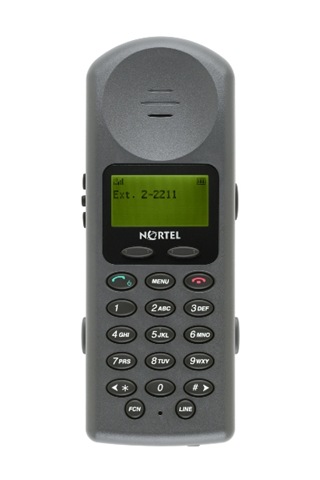
wlan_handset_2211_600x400 The purpose of this post is to outline how to properly configure a Nortel WLAN 2210/2211 Wireless Handset to connect over a wireless LAN to a Nortel Succession Call Server.

There is a cradle and software available to ease/speed the configuration but for this post we'll assume that we only have the phone itself and not the configuration cradle or additional software.

Note: If you are going to be supporting and/or installing dozens of these phones I would strongly suggest that you purchase the configuration cradle (you can download the software from Nortel's site).

In this example the Nortel 2211 WLAN phone will be configured to connect to a TN on a Nortel Succession 1000 v4.5 Call Server over a Motorola 5100 Wireless LAN Switch using WEP encryption. A Nortel 2245 Wireless Gateway is needed in order to connect to a Succession Call Server. Within the DHCP server a scope has been setup with the vendor class of “Nortel-221x-A” which will return the vendor specific DHCP options required by the Nortel WLAN phones.

With the wireless handset powered OFF, simultaneously press and hold the Power On / Start Call and Power Off / End Call keys.Release the Power On / Start Call key, then release the Power Off / End Call key. The first option on the Admin Menu displays.

Press the Up, Down, and Select side buttons, and the softkeys on the wireless handset to scroll through the menu options.

An asterisk (*) next to an option indicates that it is selected.

— Press the Up/Down buttons to display the previous/next menu items.
— Press the Select button to select the menu option or item.
  Alternatively, press the OK softkey to select the menu option or item.
— Press the Save softkey to save the entry.
— Press the Bksp key to backspace when editing the entry.
— Press the Up softkey to return to the previous menu level.
— Press Cncl to cancel the entry and return to the previous menu level.
— Press the Exit softkey to exit the menus.

The Admin menu should open with the following options below:

I.P. Addresses
0=Edit, FCN=Up

Scroll down the menu to the ESS ID option:

ESS ID
0=Edit, FCN=Up

Select “0” from this option to configure the ESSID value.

Current ESS ID:
Not learned yet

Scroll down this menu until the select displays “Static Entry” and select “0” to enter a value.

Enter the value proper ESSID of the WLAN you'll be trying to connect to, when finished select the Power Off/End Call button to SAVE

Select the “FCN” button to move back up a menu level.

Scroll down to the “License Mgmt” option

License Mgmt
0=Edit, FCN=Up

Select “0” to edit the license mgmt option and scroll through the option until you reach “010”.

Set Current [010]
0=Select, FCN=Up

Select the “FCN” button to move back up the a menu level.

Scroll down the menu to the “Security” options:

Security
0=Select, FCN=Up

Select “0” to enter the Security options and then scroll down until the following option appears;

WEP
0=Select, FCN=Up

Select WEP by entering “0” into the phone;

Authentication
0=Edit, FCN=Up

Select Authentication by entering “0” into the phone;

Open System
0=Select, FCN=Up

Scroll down until your reach the “Open System” option and select it by entering “0” into the phone. Proceed back up the menu be hitting the “FCN” button then scroll down the menu until you reach the “WEP On/Off” option, select “0”;

WEP On/Off
0=Select, FCN=Up

Scroll down the menu until the “WEP On” option appears as below and enter “0” to select this option;

WEP On
0=Select, FCN=UP

Key Information
0=Edit, FCN=Up

Default Key     1
Current Key:

Key Length
0=Edit, FCN=Up

128 bit
0=Select, FCN=Up

Key #1
Key #2
Key #3
Key #4           

Enter the Default Key number and actual WEP key for the ESSID you're trying to connect to. After this initial configuration the phone should connect to the WLAN and pull additional DHCP configuration options and should perform any firmware uploads if any are required.

***DO NOT POWER OFF THE PHONE WHILE THE FIRMWARE IS BEING UPDATED ***

Once the phone completes the upgrade it will reboot and should present a display similar to below;

Connect Svc
Node: _ _ _ _
TN: _ _ _ . _ _ . _ _ . _ _

OK  BKSp  Cler  Cncl

From here you’ll need to configure the node and TN information for this specific phone.


Cheers!